


 45
45
If you need to install custom software or make a change on your computer that requires administrative rights, you can temporarily achieve this by using Mosyle's "Admin-on-Demand" feature.
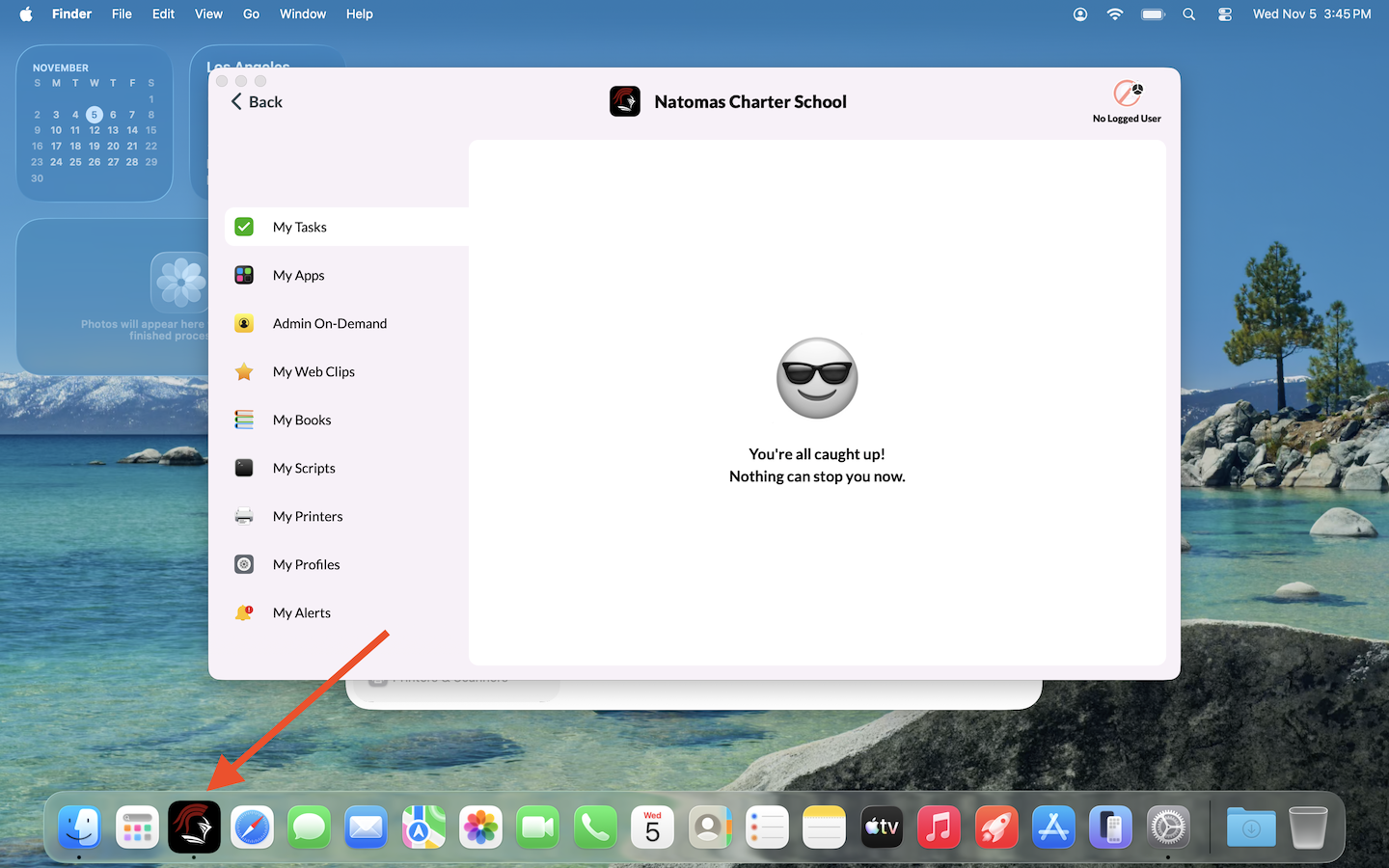
To do this, open the Manager App located on your Application Dock (or in your Applications folder), make sure you have 'Self Service' selected from the drop-down in the top left, and select the "Admin-on-Demand' option from left menu.
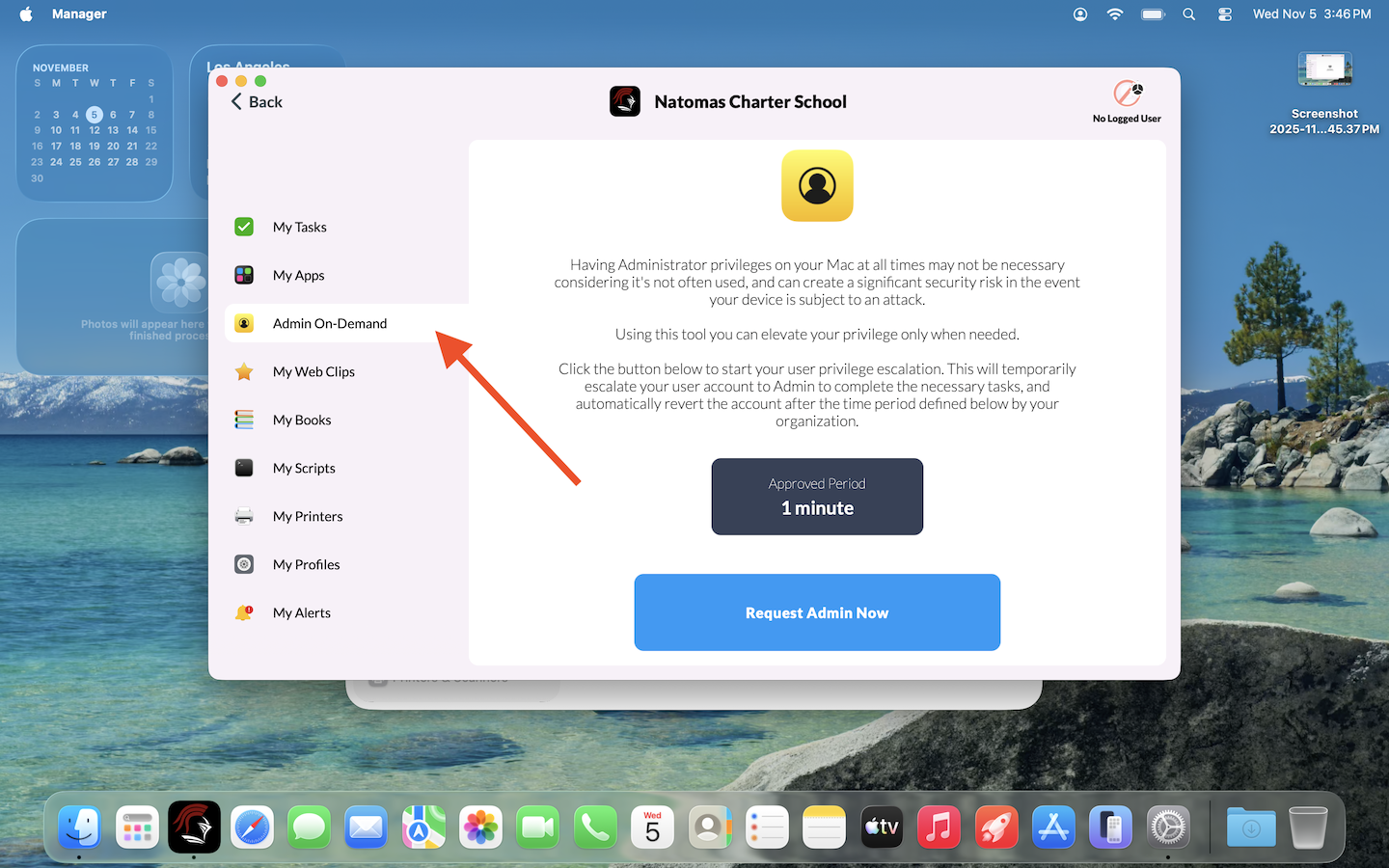
Once there, select the big blue button that says "Request Admin Access" and follow the prompts. It will ask you for the reason you are requesting this, i.e., "I need to install Photoshop," or "I want to change network settings," etc.
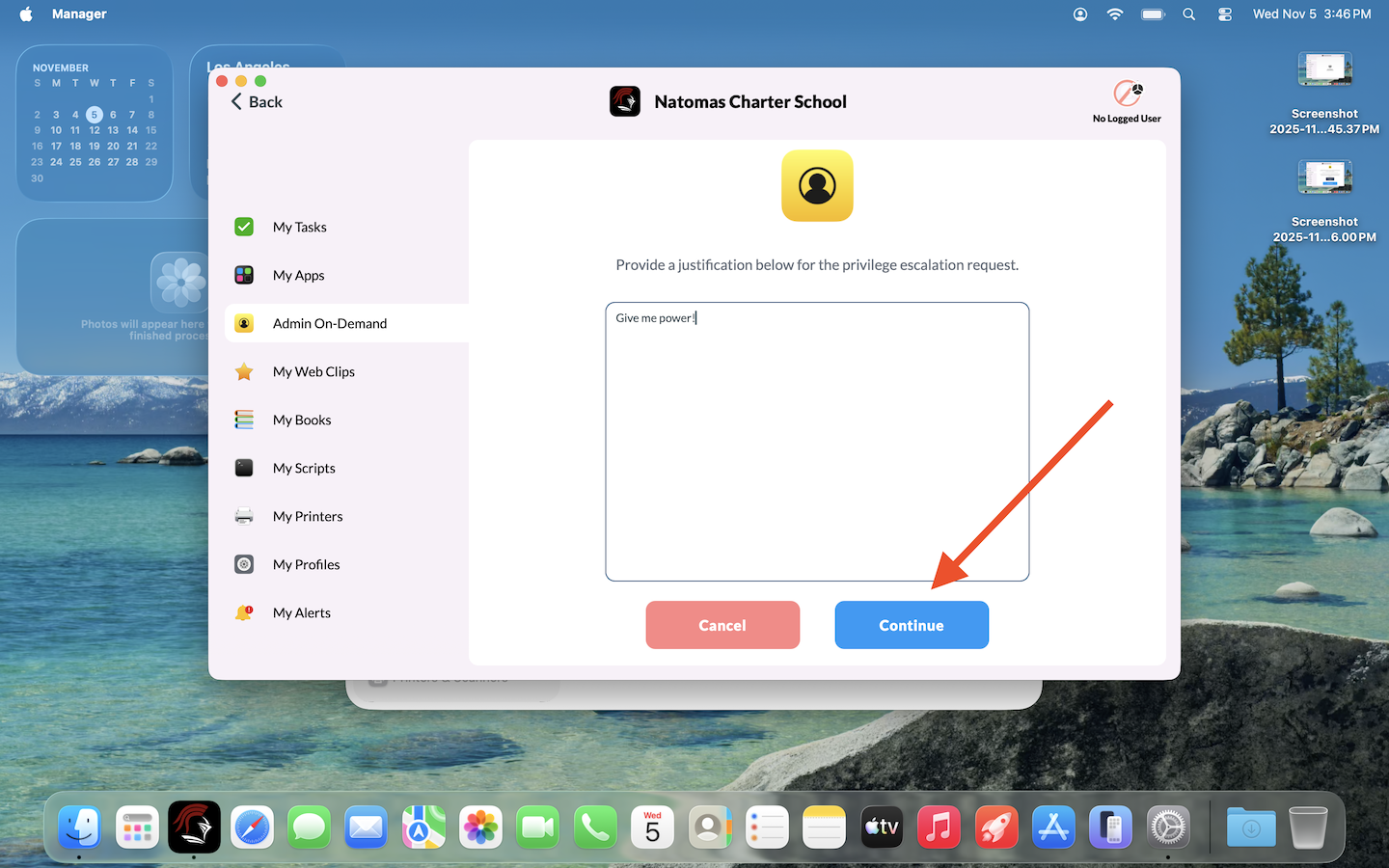
Submit your request and wait about a minute. You will see a pop up in the upper right indicating you have admin rights for a brief period (one minute, to be exact).
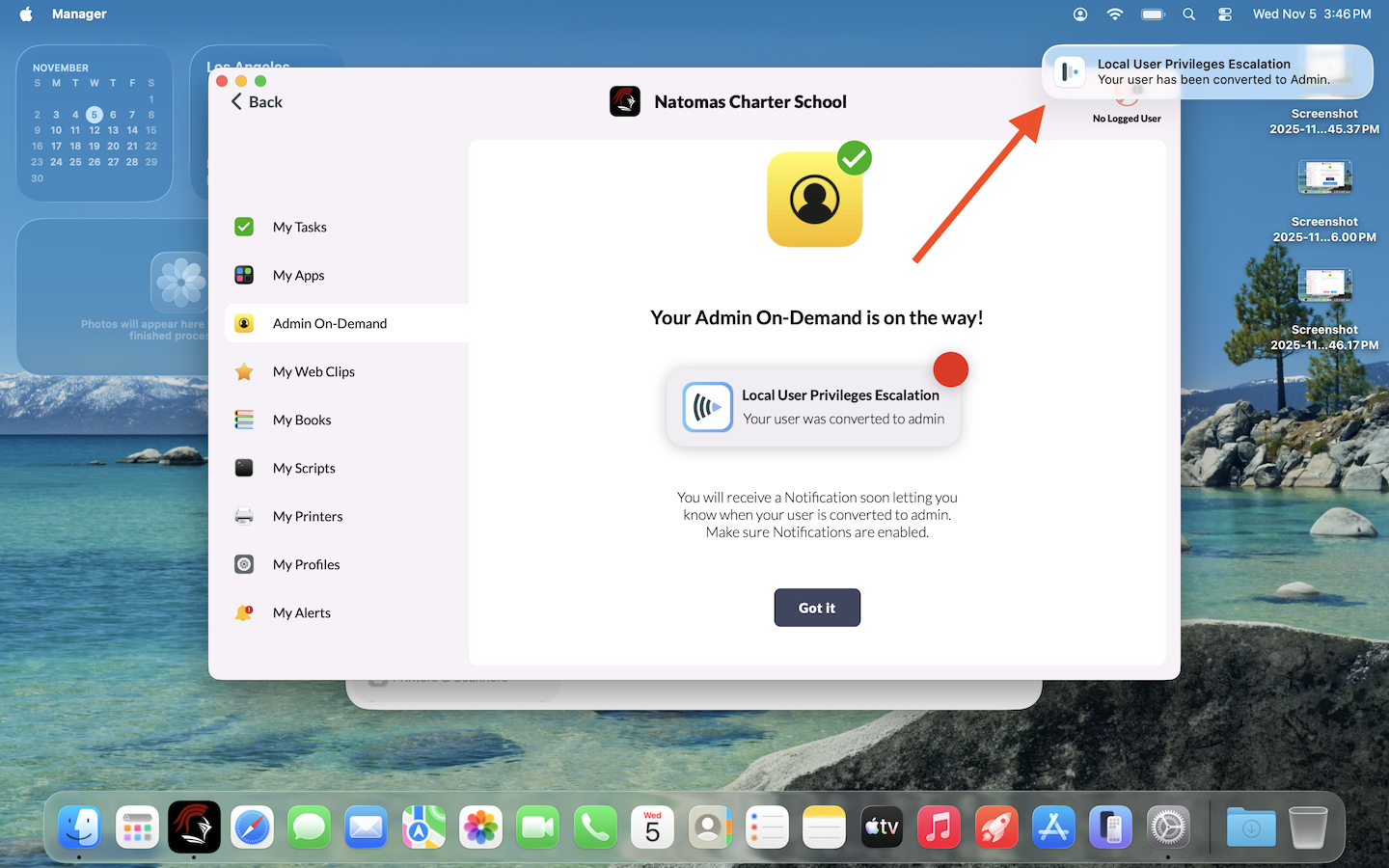
Then, you can do whatever task needed that requires admin rights. You can also do this multiple times throughout the day, so don't worry if you run out of time.
This is designed to make sure users don't unknowingly install malware, and keeps your computer safe.
If you have any questions, feel free to make a happy fox ticket and we can assist you further.

